
شرح اليوم جداً بسيط ولكن مستخدم بكثرة , وهو إنشاء رسالة مصغرة في الشاشة تظهر لوقت معين من ثم تختفي, تستفيد منها في بيان الضغط على شيء معين, أو رسالة توضيحية, أو حتى رسالة منبثقة للمستخدم .
في البداية الثوابت التي تستخدم مع التوست هي :
- LENGTH_LONG
- LENGTH_SHORT
تستخدم لتحديد المدة الزمنية التي يظهر ويختفي بها التوست.
قبل الاستخدام مثال عليها في صورة :

الكود الخاص بالتوست تضعه اين تريد , إذا أردته مع افتتاح التطبيق فتجعله داخل دالة onCreate أو داخل دالة onClick بعد الضغط على الزر .. حسب ما تريد تضع الكود الخاص به.
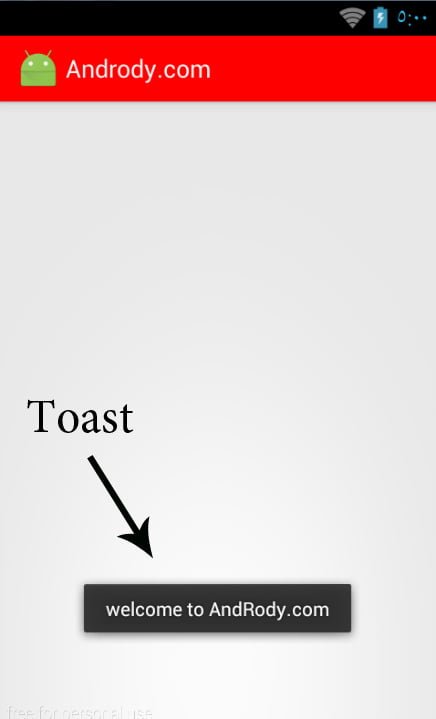
code Toast :
Toast.makeText(getApplicationContext(),"welcome to alawirisaddam.blogspot.com",Toast.LENGTH_LONG).show();
or
    AAA1=Toast.makeText(getApplicationContext(),"welcome to alawirisaddam.blogspot.com",Toast.LENGTH_SHORT);
    AAA1.setMargin(50,50);
    AAA1.show();
- بالنسبة لـ LENGTH_LONG تأخذ وقت 3500 اي 3.5 ثانية.
- و بالنسبة لـ LENGTH_SHORT تأخذ وقت 2000 اي 2 ثانية.
ولمن يريد أن يطول رسالة التوست يجب أن يستخدم الدالة CountDownTimer من خلال الكود التالي :
    final Toast AAA2=Toast.makeText(getApplicationContext(),"welcome to alawirisaddam.blogspot.com",Toast.LENGTH_SHORT);
    AAA2.show();
    new CountDownTimer(9000, 1000)
    {

    public void onTick(long millisUntilFinished) {AAA2.show();}
    public void onFinish() {AAA2.show();}

    }.start();
ملاحظة بالكود الأول .. توست بدون متغير فقط توست وتشغيله ..
بالكود الثاني والثالث استخدمت متغيرات AAA1 , AAA2 وهي من عندي تستطيع استبدالها بالذي تريد , واستخدامها كان لتعطي خصائص أكبر للتوست.
بالنسبة لـلدوال المستخدمة في التوست ( Methods ) هي :
- public static Toast makeText(Context context, CharSequence text, int duration)
وهي تجعل التوست تحصل على محتوى + وقت.
- public void show()
وهي لعرض التوست.
- public void setMargin (float horizontalMargin, float verticalMargin)
وهي لتحديد الهامش الخارجي للتوست .. تحدد قيم رقمية .. لتحديد موقع التوست من الشاشة.
طرق انشاء رسالة مؤقتة بواسطة تطبيق aide
كل ماعليك فعلة هو نسخ الكود ولصقة
الطريقة الاولى simple toast

  //package com.alawirisaddam.toast;

  import android.support.v7.app.AppCompatActivity;
  import android.os.Bundle;
  import android.widget.*;
  import android.view.*;

  public class MainActivity extends AppCompatActivity {

  Button b1,b2;

  @Override
  protected void onCreate(Bundle savedInstanceState) {
  super.onCreate(savedInstanceState);
  setContentView(R.layout.activity_main);
  //هنا ربط ربط الازرار
  b1=(Button)findViewById(R.id.longToast);
  b2=(Button)findViewById(R.id.shortToast);
  //مستمع الزر الاول لاضهار رسالة طويلة
  b1.setOnClickListener(new View.OnClickListener() {
  @Override
  public void onClick(View v) {
  Toast.makeText(getApplicationContext(),"This is long toast",Toast.LENGTH_LONG).show();
  }
  });

  //مستمع الزر الثاني لاضهار رسالة قصيره

  b2.setOnClickListener(new View.OnClickListener() {
  @Override
  public void onClick(View v) {
  Toast.makeText(getApplicationContext(),"This is short toast",Toast.LENGTH_SHORT).show();
  }
  });

  }
  }
  <?xml version="1.0" encoding="utf-8"?>
  <LinearLayout xmlns:android="http://schemas.android.com/apk/res/android"
  xmlns:tools="http://schemas.android.com/tools"
  android:layout_width="match_parent"
  android:layout_height="match_parent"
  tools:context=".MainActivity"
  android:padding="16dp"
  android:orientation="vertical"
  android:gravity="center">

  <Button
  android:id="@+id/longToast"
  android:layout_width="match_parent"
  android:layout_height="wrap_content"
  android:text="LONG TOAST"
  android:textColor="#ffffff"
  android:background="#f75450"
  android:layout_marginBottom="20dp"
  />

  <Button
  android:id="@+id/shortToast"
  android:layout_width="match_parent"
  android:layout_height="wrap_content"
  android:text="SHORT TOAST"
  android:textColor="#ffffff"
  android:background="#f75450"
  />

  </LinearLayout>
الطريقة الثانية custom tost

  //package com.alawirisaddam.custom_toast;

  import android.support.v7.app.AppCompatActivity;
  import android.os.Bundle;
  import android.widget.*;
  import android.view.*;

  public class MainActivity extends AppCompatActivity {

  Button btnCustomToast;
  @Override
  protected void onCreate(Bundle savedInstanceState) {
  super.onCreate(savedInstanceState);
  setContentView(R.layout.activity_main);
  btnCustomToast=(Button)findViewById(R.id.btndemo);
  btnCustomToast.setOnClickListener(new View.OnClickListener() {
  @Override
  public void onClick(View view) {

  LayoutInflater inflater = getLayoutInflater();
  View layout = inflater.inflate(R.layout.custom_toast_layout,
  (ViewGroup) findViewById(R.id.custom_toast_container));
  TextView text = (TextView) layout.findViewById(R.id.textCustom);
  text.setText("This is a custom toast");
  Toast toast = new Toast(getApplicationContext());
  toast.setGravity(Gravity.CENTER_VERTICAL, 0, 0);
  toast.setDuration(Toast.LENGTH_LONG);
  toast.setView(layout);
  toast.show();
  }
  });
  }

  }
  <?xml version="1.0" encoding="utf-8"?>
  <LinearLayout xmlns:android="http://schemas.android.com/apk/res/android"
  xmlns:app="http://schemas.android.com/apk/res-auto"
  xmlns:tools="http://schemas.android.com/tools"
  android:layout_width="match_parent"
  android:layout_height="match_parent"
  tools:context=".MainActivity">
  <Button
  android:layout_width="match_parent"
  android:layout_height="wrap_content"
  android:id="@+id/btndemo"
  android:layout_margin="30dp"
  android:text="Click here"
  android:textColor="#FFFFFF"
  android:background="#098f45"
  android:textSize="30sp"

  />

  </LinearLayout>
ثم قم بانشاء ملف xml ضمن ملف layout ثم ضع الكود التالي داخلة
  <?xml version="1.0" encoding="utf-8"?>
  <LinearLayout xmlns:android="http://schemas.android.com/apk/res/android"
  android:id="@+id/custom_toast_container"
  android:orientation="horizontal"
  android:layout_width="fill_parent"
  android:layout_height="fill_parent"
  android:padding="8dp"
  android:background="#DAAA"
  >
  <ImageView android:src="@mipmap/ic_launcher"
  android:layout_width="wrap_content"
  android:layout_height="wrap_content"
  android:layout_marginRight="8dp"
  />
  <TextView android:id="@+id/textCustom"
  android:layout_width="wrap_content"
  android:layout_height="wrap_content"
  android:textColor="#000000"
  android:layout_marginLeft="10dp"
  android:textSize="20dp"
  />
  </LinearLayout>
الطريقة الثالثة positioning toast

  //package com.alawirisaddam.positioningtoast;

  import android.support.v7.app.AppCompatActivity;
  import android.os.Bundle;
  import android.widget.*;
  import android.view.*;

  public class MainActivity extends AppCompatActivity {

  Button b1,b2,b3,b4,b5,b6,b7;
  Toast toast;
  LinearLayout linearLayout;

  @Override
  protected void onCreate(Bundle savedInstanceState) {
  super.onCreate(savedInstanceState);
  setContentView(R.layout.activity_main);

  b1=(Button)findViewById(R.id.topToast);
  b2=(Button)findViewById(R.id.bottomToast);
  b3=(Button)findViewById(R.id.leftToast);
  b4=(Button)findViewById(R.id.rightToast);
  b5=(Button)findViewById(R.id.centerToast);
  b6=(Button)findViewById(R.id.center_horizontalToast);
  b7=(Button)findViewById(R.id.center_verticalToast);

  //الزر الأول  تظهر الرساله اعلى وسط الشاشه

  b1.setOnClickListener(new View.OnClickListener() {
  @Override
  public void onClick(View v) {
  toast= Toast.makeText(getApplicationContext(),"TOP",Toast.LENGTH_SHORT);
  toast.setGravity(Gravity.TOP,0,0);
  toast.show();
  }
  });

  //الزر الثاني تظهر الرساله اسفل الشاشه

  b2.setOnClickListener(new View.OnClickListener() {
  @Override
  public void onClick(View v) {
  toast=Toast.makeText(getApplicationContext(),"BOTTOM",Toast.LENGTH_SHORT);
  toast.setGravity(Gravity.BOTTOM,0,0);
  toast.show();
  }
  });

  //الزر الثالث  تظهر الرساله شمال وسط الشاشه

  b3.setOnClickListener(new View.OnClickListener() {
  @Override
  public void onClick(View v) {
  toast=Toast.makeText(getApplicationContext(),"LEFT",Toast.LENGTH_SHORT);
  toast.setGravity(Gravity.LEFT,0,0);
  toast.show();
  }
  });


  //الزر الرابع  تظهر الرساله وسط يمين الشاشه


  b4.setOnClickListener(new View.OnClickListener() {
  @Override
  public void onClick(View v) {
  toast=Toast.makeText(getApplicationContext(),"RIGHT",Toast.LENGTH_SHORT);
  toast.setGravity(Gravity.RIGHT,0,0);
  toast.show();
  }
  });

  //الزر الخامس  تظهر الرساله وسط  الشاشه

  b5.setOnClickListener(new View.OnClickListener() {
  @Override
  public void onClick(View v) {
  toast=Toast.makeText(getApplicationContext(),"CENTER",Toast.LENGTH_SHORT);
  toast.setGravity(Gravity.CENTER,0,0);
  toast.show();
  }
  });


  b6.setOnClickListener(new View.OnClickListener() {
  @Override
  public void onClick(View v) {
  toast=Toast.makeText(getApplicationContext(),"CENTER HORIZONTAL",Toast.LENGTH_SHORT);
  toast.setGravity(Gravity.CENTER_HORIZONTAL,0,0);
  toast.show();
  }
  });


  b7.setOnClickListener(new View.OnClickListener() {
  @Override
  public void onClick(View v) {
  toast=Toast.makeText(getApplicationContext(),"CENTER VERTICAL",Toast.LENGTH_SHORT);
  toast.setGravity(Gravity.CENTER_VERTICAL,0,0);
  toast.show();
  }
  });


  }
  }
  <?xml version="1.0" encoding="utf-8"?>
  <LinearLayout xmlns:android="http://schemas.android.com/apk/res/android"
  xmlns:tools="http://schemas.android.com/tools"
  android:layout_width="match_parent"
  android:layout_height="match_parent"
  tools:context=".MainActivity" >

  <ScrollView
  android:layout_width="match_parent"
  android:layout_height="match_parent">

  <LinearLayout
  android:layout_width="match_parent"
  android:layout_height="wrap_content"
  android:orientation="vertical"
  android:padding="16dp"
  android:gravity="center">

  <Button
  android:id="@+id/topToast"
  android:layout_width="match_parent"
  android:layout_height="wrap_content"
  android:text="TOP"
  android:textColor="#ffffff"
  android:background="#f750f7"
  android:layout_marginBottom="15dp"
  />

  <Button
  android:id="@+id/bottomToast"
  android:layout_width="match_parent"
  android:layout_height="wrap_content"
  android:text="BOTTOM"
  android:textColor="#ffffff"
  android:background="#f750f7"
  android:layout_marginBottom="15dp"
  />

  <Button
  android:id="@+id/leftToast"
  android:layout_width="match_parent"
  android:layout_height="wrap_content"
  android:text="LEFT"
  android:textColor="#ffffff"
  android:background="#f750f7"
  android:layout_marginBottom="15dp"
  />

  <Button
  android:id="@+id/rightToast"
  android:layout_width="match_parent"
  android:layout_height="wrap_content"
  android:text="RIGHT"
  android:textColor="#ffffff"
  android:background="#f750f7"
  android:layout_marginBottom="15dp"
  />

  <Button
  android:id="@+id/centerToast"
  android:layout_width="match_parent"
  android:layout_height="wrap_content"
  android:text="CENTER"
  android:textColor="#ffffff"
  android:background="#f750f7"
  android:layout_marginBottom="15dp"
  />

  <Button
  android:id="@+id/center_horizontalToast"
  android:layout_width="match_parent"
  android:layout_height="wrap_content"
  android:text="CENTER HORIZONTAL"
  android:textColor="#ffffff"
  android:background="#f750f7"
  android:layout_marginBottom="15dp"
  />

  <Button
  android:id="@+id/center_verticalToast"
  android:layout_width="match_parent"
  android:layout_height="wrap_content"
  android:text="CENTER VERTICAL"
  android:textColor="#ffffff"
  android:background="#f750f7"
  android:layout_marginBottom="15dp"
  />

  </LinearLayout>

  </ScrollView>

  </LinearLayout>
وشكراً لكم جميعاً على دعمكم للموقع .. وانتظرونا ان شاء الله بكل جديد ومفيد وحصري .. والسلام عليكم ..